Pads and input
The launcher and RetroArch use separate controller mappings. This chapter explains how OmaCRT keeps them in sync, which pad plays as player one, how to map an unknown pad and which controls work in menus and games.
If a pad works in the launcher but buttons are missing in a game, check its RetroArch profile. A mapping can exist in one database and be absent from the other.
Controller mappings
The launcher reads pads through SDL's game controller API. RetroArch reads them through its own autoconfiguration. SDL matches a pad by a globally unique identifier and reads one text file. RetroArch matches by USB vendor and product and reads a directory of profiles. A pad in one list and not the other works in the launcher and does nothing in a game.
For each connected pad, OmaCRT extracts the USB identifiers from SDL’s identifier and prepares RetroArch’s profile directory:
- If there is already a profile for those identifiers, it leaves it alone, so anything you tuned by hand survives.
- Otherwise, if RetroArch ships one, it copies it in. RetroArch reads exactly one directory, and a file written into a system directory would not survive an update.
- Otherwise, if SDL knows the pad, it writes a profile translated from SDL's mapping.
The two projects name the face buttons differently, so the translation crosses them where they are crossed. RetroArch’s B is the bottom button and SDL calls it A. RetroArch’s Y is the left one and SDL calls it X. Hats, axes and triggers carry over as they are.
The pair is swapped only where OmaCRT can show that it is crossed. SDL names a face button by where it sits, not by the letter printed beside it. On a pad built like a Mega Drive or a Saturn controller the southern button is marked B, so the launcher confirmed on B while the button marked A went back. OmaCRT reads the letters from the profile RetroArch ships for that pad and swaps the pair when they disagree with SDL. A confirms in the menus and in the game. A pad with no profile is left exactly as SDL has it.
omacrt-shell --pads says what SDL makes of every connected pad, which mapping it found, where Start is, and what was done about the games. It is the first thing to run when a pad behaves oddly. omacrt pads mapping prints the same from the desktop, and adds whether the letters on each pad are crossed.
Which pad is player one
An ordered list in ~/.config/omacrt/pads.toml decides the player order. Nothing else decides it. Not the order the pads were plugged in, and not which one connected first.
OmaCRT identifies a pad by its SDL identifier and by a unit id read from sysfs. The SDL identifier names the model, which every unit of that model shares. The unit id names the individual: the Bluetooth address over the air, the USB serial on a cable. Two pads of one model that report neither cannot be told apart, and the pads screen says so rather than implying that the order between them means anything.
Ports 1 to 4 are handed out when a game starts, to the pads on the list that are connected at that moment. Disconnected pads are skipped. With a list of two and only the second pad switched on, the second pad plays as player one. The order does not change while a game runs, because RetroArch fixes the ports as it opens and its network-command interface is disabled.
A pad that is switched off keeps its place on the list and its socket on the screen, drawn in grey. A pad that arrives later goes on the end of the list, so connecting one never rearranges the pads already there. A connected pad that the list has never seen still plays. It goes after the listed pads at the next launch and joins the list once the launcher has seen it.
OmaCRT writes input_playerN_joypad_index into every launch. That is an assertion about what RetroArch will do, so OmaCRT reads the udev lines back out of RetroArch’s log afterwards. If a pad landed somewhere other than the port it was sent to, the launcher reports the port it meant and the device that arrived instead. It does not report the request as the result.
pads.toml is read through the same loader as the other settings. A file that does not parse is moved aside as pads.toml.bad, the backup is read instead, and the recovery is reported.
The pads screen
Open Pads in Settings to arrange the ports, pair a pad, remap one or forget one.
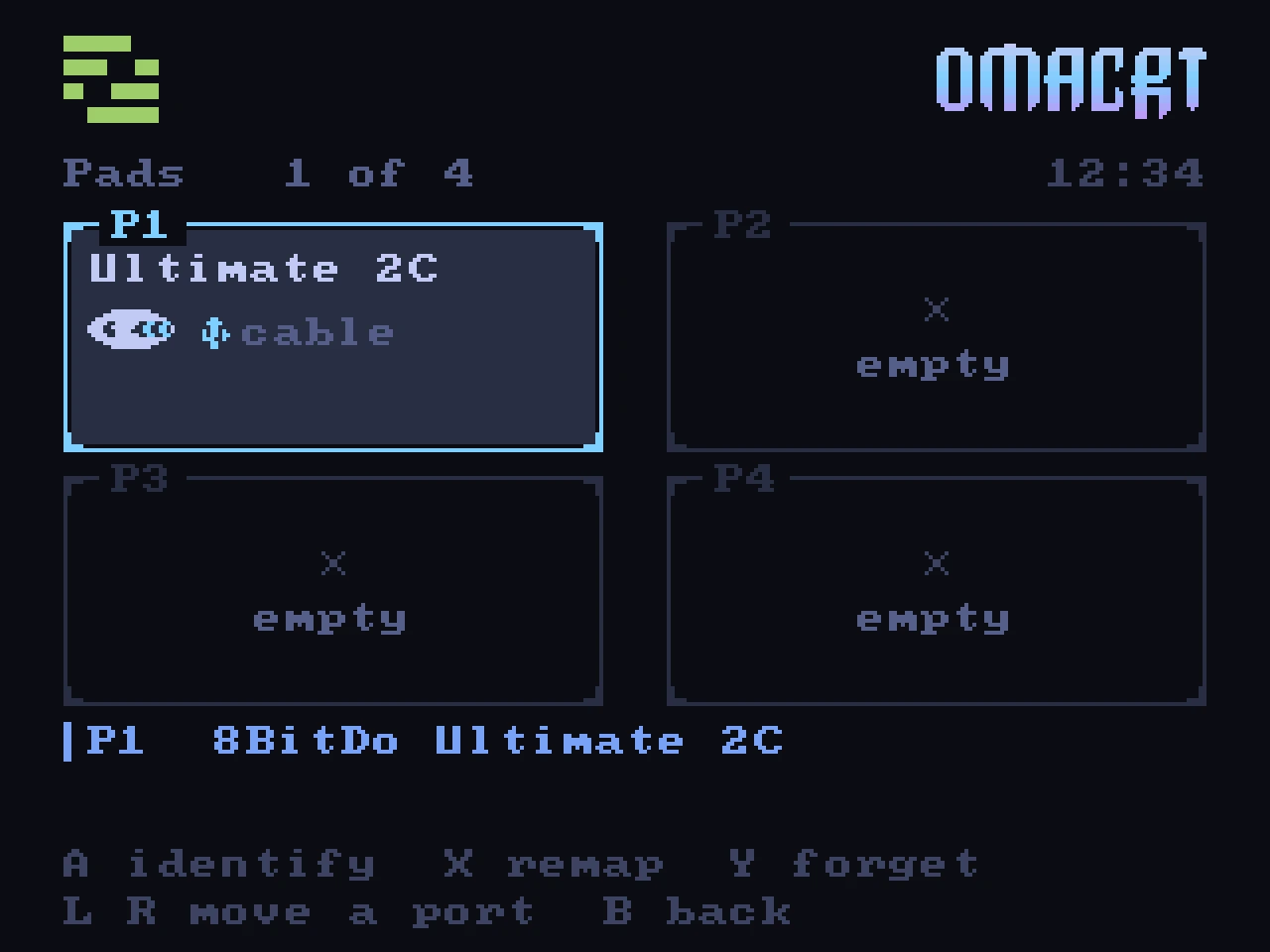
The screen draws four ports as sockets, two by two, whether they are filled or not, so there are no rows to count. Each filled socket shows the pad, its name cut down to the model, whether it is on a cable or wireless, and its charge where the kernel reports one. Most pads report no charge, and then none is drawn.
The shoulder buttons move the selected pad one port along. A shakes the pad in the selected port. A on an empty socket searches for a new pad over Bluetooth. X remaps the pad in the selected port, and Y forgets it.
Shaking a pad is the only way to tell two of one model apart when both are in front of you. A pad moving between ports slides between the two sockets, and the shoulders report when there is no port left to move it to.
Pads from the desktop
The ports can also be arranged without switching the television on.
The bar panel lists the pads in port order, with how each one is attached and its charge, and carries buttons that move a pad a port or forget it. A pad that the list has not seen yet is shown as well, because it still plays.
The panel’s Pads button opens a full-screen overlay, the way the library overlay opens. It draws the same four sockets, and adds three things the television screen does not show: each pad’s serial, the index RetroArch will give it, and whether the letters on its face sit where SDL expects. Identify shakes the pad in that port.
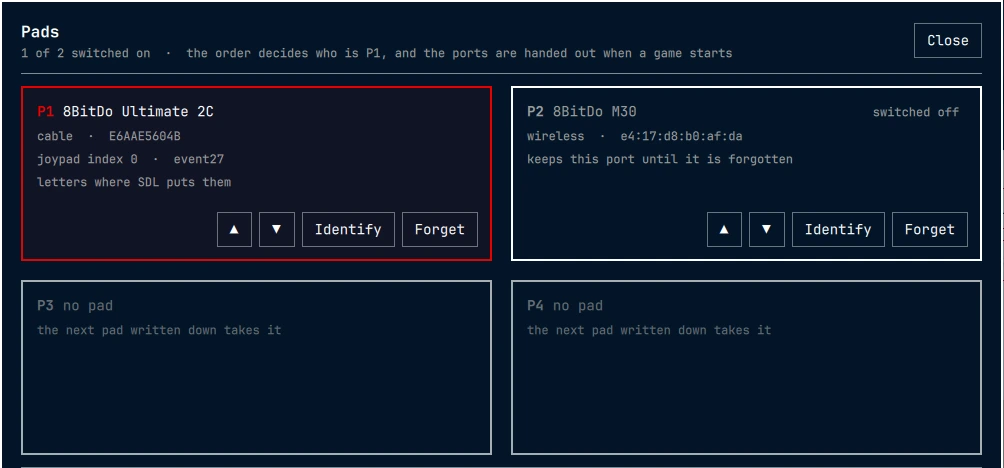
The overlay is a third Omarchy plugin. On the desktop lists the three directories the installer writes.
From a terminal, omacrt pads prints the order with what is connected and omacrt pads devices prints what the kernel shows, in the order RetroArch enumerates them, with the index each one gets. The command line lists the verbs that change the order.
Mapping an unknown controller
Use the mapping wizard to configure a pad that neither database recognises.
Connect the pad while the launcher menu is open. The wizard asks for A, B, X, Y, Start, Select, the d-pad, shoulders, triggers, left stick and home button. Press each control when prompted. To skip a missing control, press the button you assigned to A or press Enter.
The launcher saves the mapping in SDL’s community format and loads it at startup. You can share the file with someone using the same pad. To correct a mapping, open Pads in Settings and press X on the pad’s socket.
OmaCRT then generates the RetroArch profile from that mapping.
Searching with a controller
Use search or letter jumps to navigate long game lists.
The left trigger opens search and the on-screen keyboard. Move with the d-pad, type with A, delete with X and enter a space with Y. Press B to close the keyboard while keeping the filter. Titles must contain every search word; those beginning with the first word appear first.
The shoulder buttons jump to the next or previous initial letter in the list.
The left stick works as a d-pad with key repeat: one step when it leaves the dead zone, then a step every 120 milliseconds while held.
Button hints follow the pad family reported by SDL. PlayStation pads show their symbols; Xbox pads show letters. Nintendo pads show the letters printed on their buttons.
In a game
Press Select and Start together, the home button or F1 to open the launcher’s pause menu over a running game. It offers resume, save state, load state, rewind two seconds, fast forward, slow motion, picture, shader, reset and return to launcher.
Rewind uses additional memory and processor time. It is disabled for 3D consoles, and the menu indicates when the system does not support it.
Picture and Shader are saved per system. Picture cycles four choices: fill the screen, as the core asks, square pixels, and fill the tube’s frame. Shader is for playing in a desktop window; leave CRT effects off on a real television. Both settings take effect at the next core start. The launcher saves state on exit so that you can resume after restarting.
By default a game keeps its own line count inside the frame of the television standard, which leaves a black band above and below where the two differ. An American Mega Drive game draws 224 lines and a PAL television draws 288, and the console left the same bands. Each game line lands on one television line. The fourth choice, fill the tube’s frame, gives the tube its whole frame and lets the emulator scale into it. For that 224-line game on a 288-line frame the picture is magnified by 1.29 and its lines no longer land one on one, which is why it is not the default.
The launcher supplies the pause menu and sends RetroArch hotkeys through the television compositor. RetroArch’s own menu is disabled, and these controls do not use its network-command interface.
Analogue stick settings
The left stick acts as a d-pad by default for 8- and 16-bit systems. This mapping is disabled for PlayStation, Nintendo 64 and Dreamcast so that their analogue controls remain available.
The same table picks the emulated controller type where a system wants something other than a pad: a light gun, a mouse, a six button controller.
Bluetooth pairing
Press A on an empty socket on the pads screen to pair a pad.
The adapter is powered and a search runs for eight seconds. Put the pad into pairing mode while the search runs. Found devices are listed by name, and part of the address helps tell twins apart. Selecting one runs pair, then trust, then connect, in that order, and stops at the first step that fails.
Every step has a deadline and every step’s output is read, so the screen names the step that failed and quotes the reason Bluetooth gave for it. Press B to stop whatever is running. Press X to search again with a list already on screen. A search continues if you leave the screen rather than stalling behind it.
Paired pads come back on their own when they are switched on, and SDL notices them while the launcher is running.
Testing has covered one machine and its connected pads. Other controller models may need additional mapping work.
Input latency
Run-ahead removes a frame of input lag by running the core twice per frame. It is enabled for 8- and 16-bit systems and disabled for 3D systems because of the extra processing cost. Automatic frame delay is enabled, with vsync unchanged.
With a wired pad through the game controller API, the launcher’s input delay is under a frame on the tested setup. Some controllers benefit from USB polling at 1 kHz. That is a kernel command-line setting outside OmaCRT’s configuration.
The CRT itself has no frame buffer or image-processing stage. It draws the incoming signal as the beam scans the screen. Emulator timing, controller polling and the beam’s position still contribute to the time between a button press and a visible change.