15 kHz CRT televisions
Play retro games on a CRT from your Linux desktop.
OmaCRT runs games, music and video on your CRT while your other screens keep working.
Requires Hyprland and a compatible HDMI-to-RGB converter.
Read how it was built Watch the 90-second demo
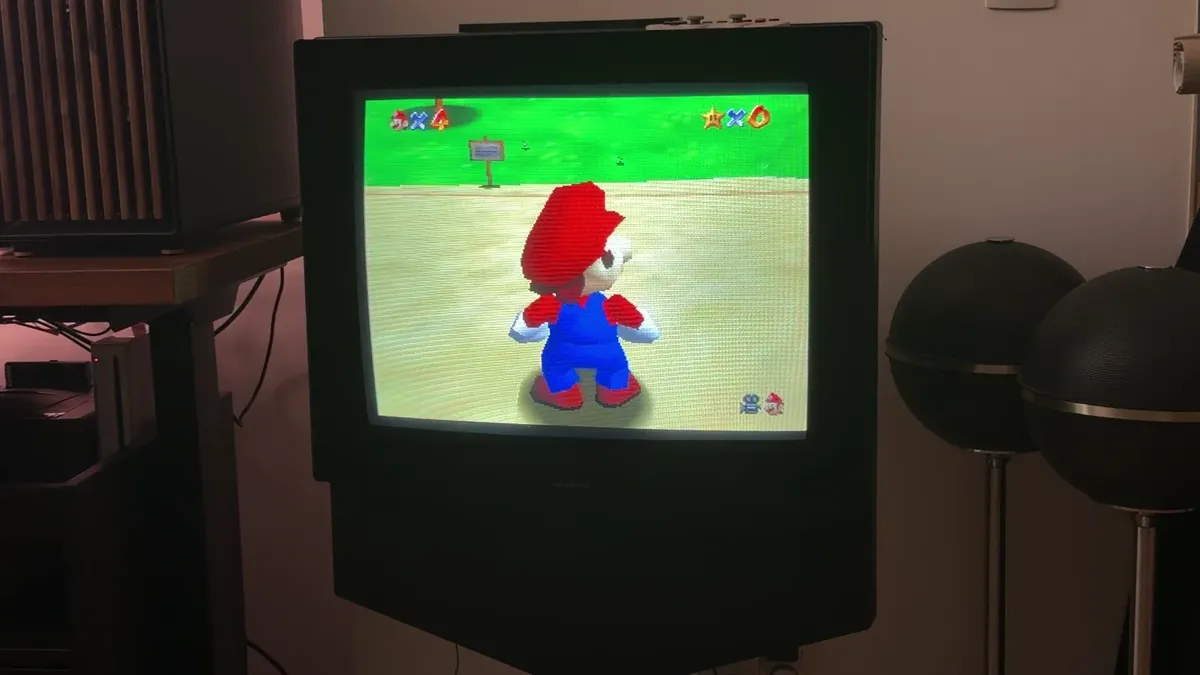
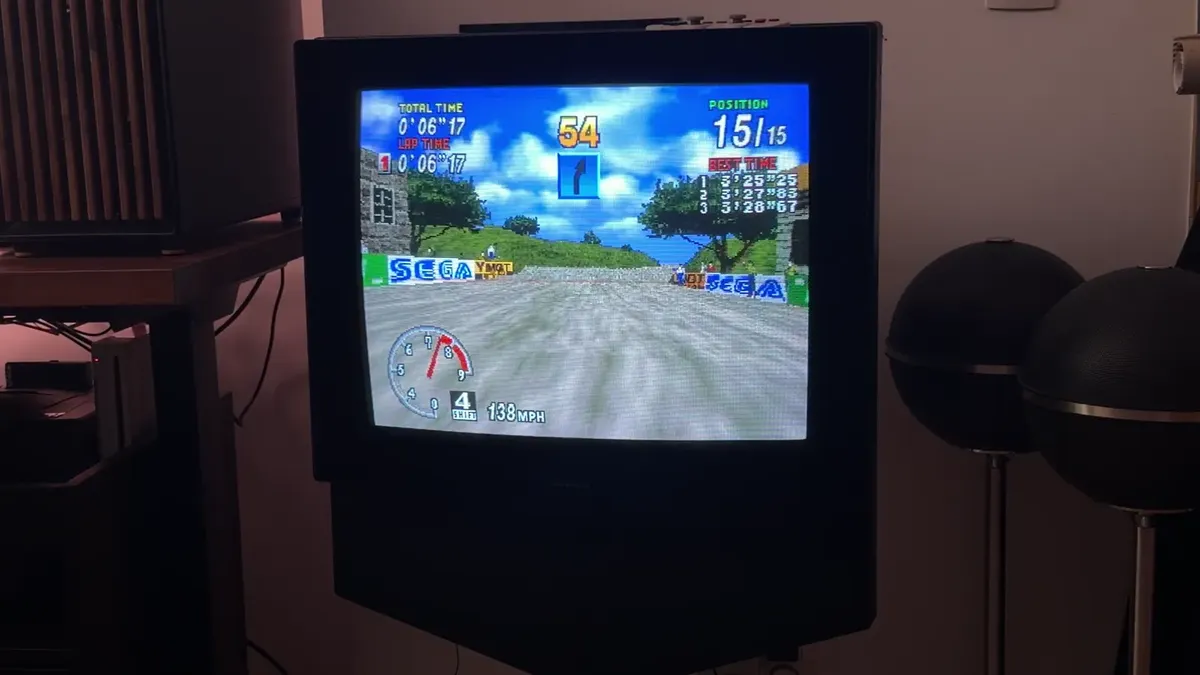
The video shows games filmed on my television.
on air 240p NTSC · 60.04 Hz
What this is
OmaCRT includes a launcher, a display process that controls the television’s output, and a command line. It runs on an existing Hyprland installation without patching the kernel or replacing the desktop.
On Omarchy, two Quickshell plugins add a bar panel and a game library overlay. A Television entry appears in the desktop menu. These integrations are optional.
A personal project by one user. Not a distribution, not a version of Omarchy, not affiliated with Omarchy or with the Omacom Foundation, not endorsed by either, and it speaks for neither. Omarchy is at omarchy.org.
Beside the others
A CRT alongside your desktop.
I wanted to play on the television using the PC I already had. OmaCRT uses DRM leasing to control one display output while Hyprland manages the rest.
The Flyback article compares this approach with GroovyArcade, Batocera and MiSTer.
- with an AI
- I use Claude for design, code, tests and documentation.
- measured
- The Flyback article describes the latency measurements, test setup and limitations.
- open
- MIT licensed. Source code and measurement tools on GitHub.
- experimental
- Tested on one Radeon RX 7700 XT, an RGB-Pi 2 converter and a Bang & Olufsen BeoCenter 1.
Why a CRT
This is how I like to play them.
I had been playing on this BeoCenter 1 through a Raspberry Pi for two years. OmaCRT lets me use the same television from my desktop PC.
Inside the television
Behind the picture.
A glass tube, copper coils and an electron beam. Explore the parts that turn a video signal into light.
See how a CRT works →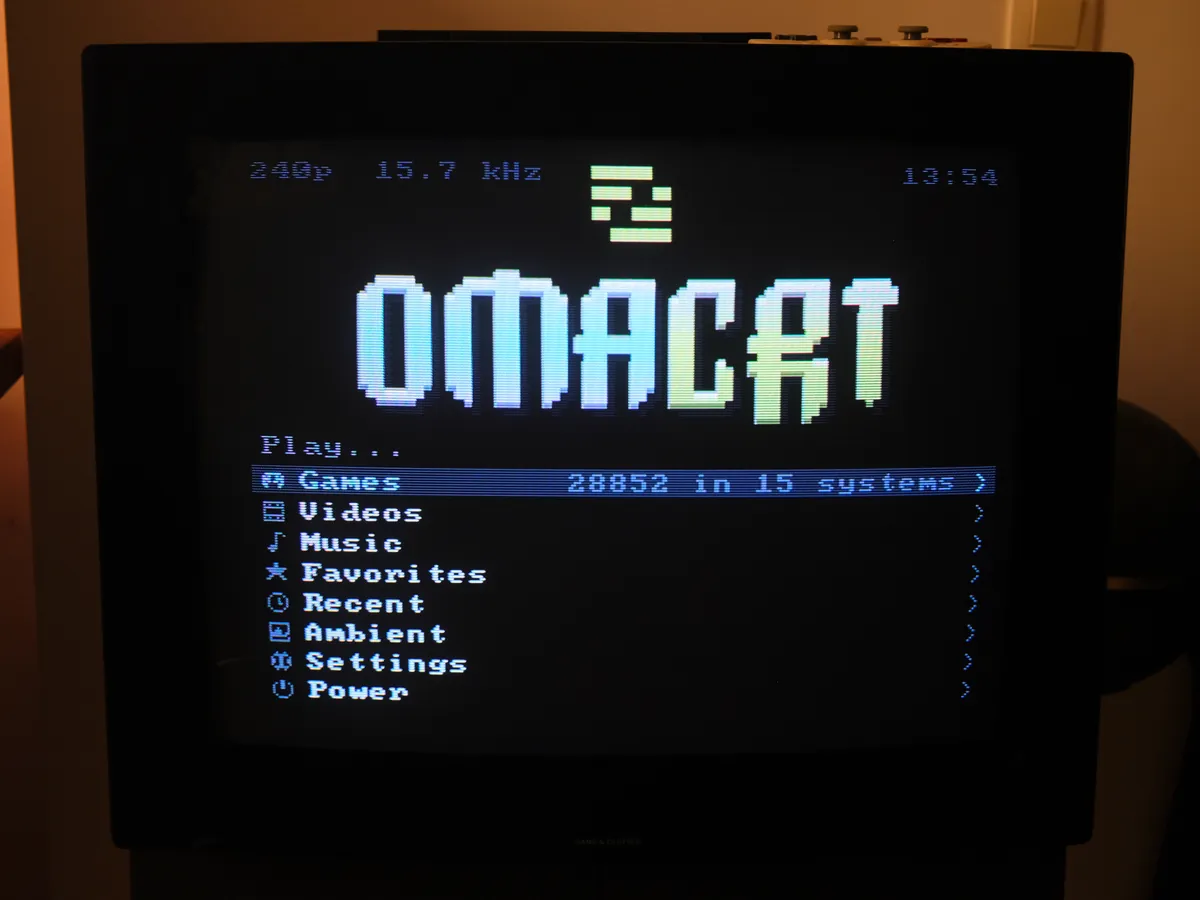
What we draw, what you see
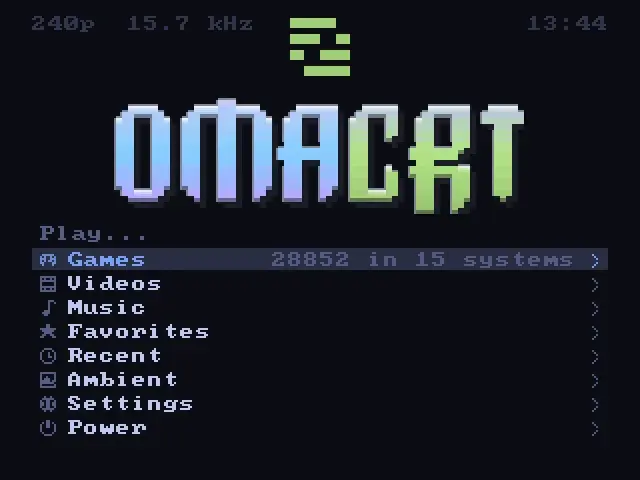
The television adds the scanlines.
The launcher draws at 320 by 240. Here is the same menu captured directly and photographed on the television.
omacrt shot.
How it works
How the signal reaches the CRT.
Hyprland lends one display connector to Flyback, OmaCRT’s display process. Flyback sets the video timing; the converter turns HDMI into analogue RGB for the television.
Omarchy desktopstays put
- Hyprland 0.56
- bar plugin, library overlay
- omacrt, one CLI
- the connector, given up HDMI-A-1, the connector
Hyprland continues to manage your other screens.
DRM lease
Leased awayowns it outright
- waiting for a connector HDMI-A-1, held
- omacrt-display
- DRM modeset, by hand
- launcher, RetroArch, mpv
Flyback displays the launcher, games and video on this output.
The television1998
The active line count changes to match the selected system.
- drawn 320x240
- handed over 1 connector
- programmed 15.731 kHz
- on the glass 240224288 lines
A wide video mode keeps the HDMI clock high enough.
The NTSC mode uses a 72 MHz pixel clock and 4577 pixels per total line. That gives 15.731 kHz and, over 262 lines, 60.04 Hz. The converter passes that timing to the television.
The modeline
NTSC  72 3520 3781 4119 4577  240 242 245 262
PAL   72 3520 3740 4078 4608  288 291 294 312
A modeline defines the signal timing. These presets use 240 active lines for NTSC and 288 for PAL.
Read the signal guide for timing details and the current limits on interlaced output.
What it does
Games, music and an idle screen.
Browse games with cover art, and arcade boards with their flyers and records. Play music, or watch video. When you leave it idle, the launcher can show your Immich photos, the weather, a system monitor or a small gallery of paintings. The images below are launcher captures.
-
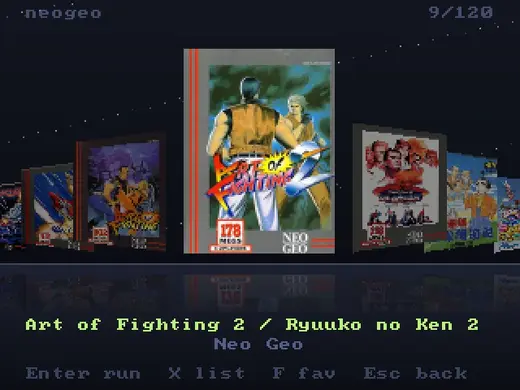
Games. Covers on a shelf that reflects them. -
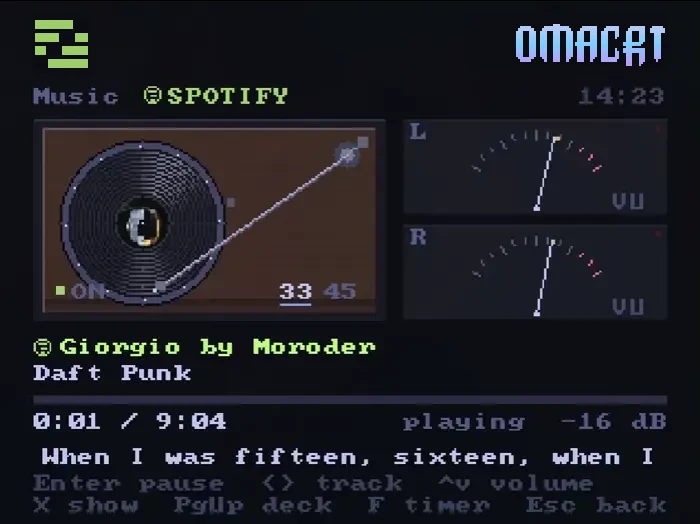
Music. A player with animated VU meters. -
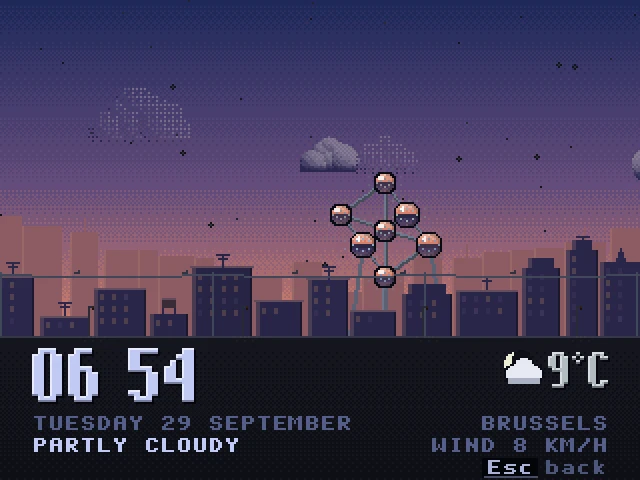
The weather. A sky drawn from the local forecast. -
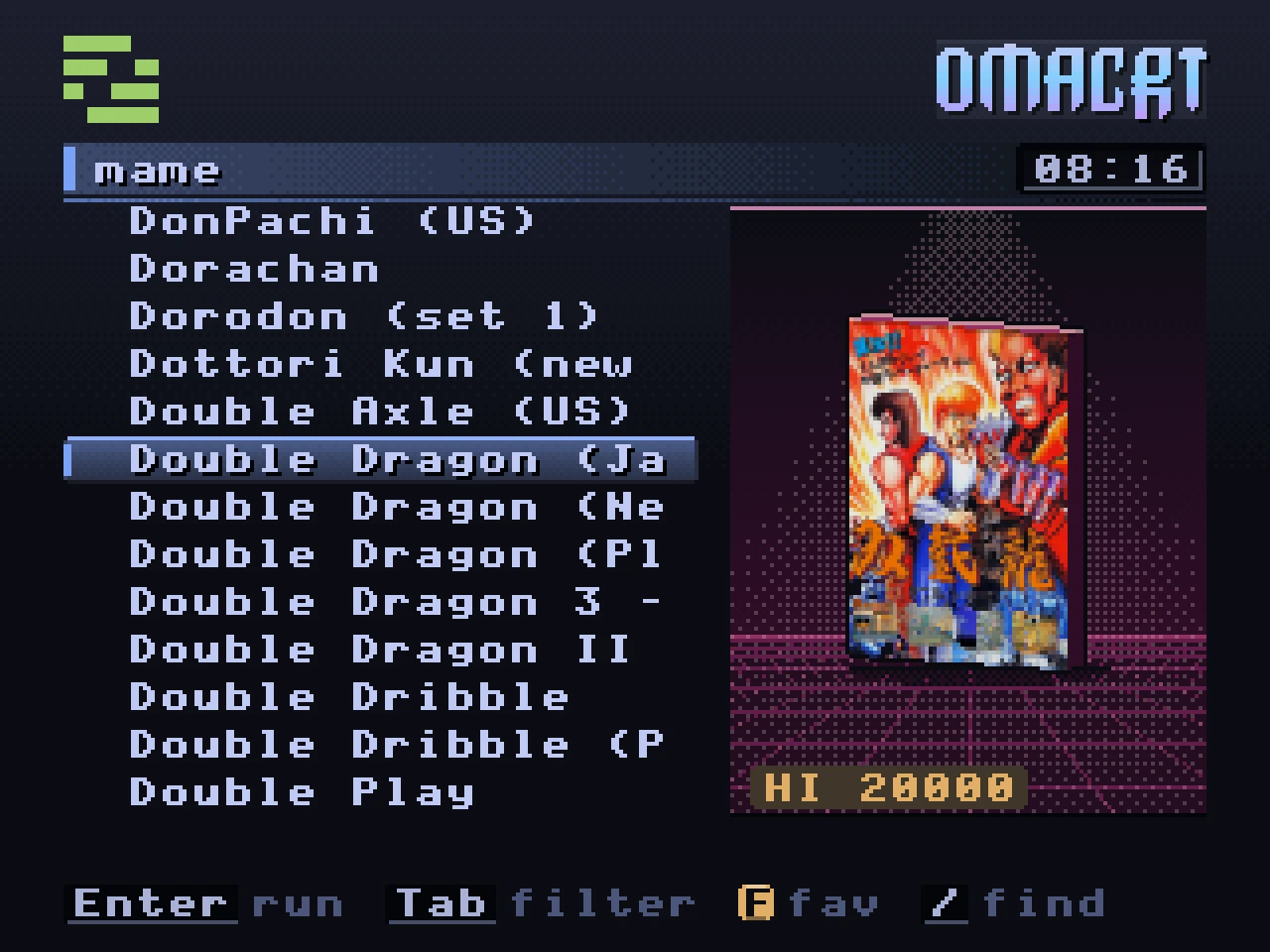
Arcade. The flyer, and the record the board keeps.
Before you buy anything
Check your setup.
Run the diagnostic tool before buying hardware. It checks the software requirements; the converter and television still need testing together.
omacrt doctor
After installing OmaCRT, you can check these requirements without a television connected:
-
which driver the card is on
amdgpuis the one this is known to work on - whether DRM leasing is available lists connectors offered by the compositor
- whether systemd is there for the override that hands the tube over at boot
- whether debugfs is mounted because that override is a write to it
With the hardware connected, the report also shows the video timing, display outputs and converter status.
The command reference also covers playback, audio routing, screenshots and recordings.
A recorded diagnostic run on my setup.

Recording shown at half speed.
Get started
Install.
Build from source with the commands below. The installer places the programs in your home directory; a separate system service enables DRM leasing at boot.
You need Hyprland 0.56 or later, systemd, mounted debugfs, a Rust
toolchain, RetroArch with your chosen cores, mpv, ffmpeg and curl.
omacrt setup helps you select the television’s connector.
Reboot after installing the system service, then scan your games and start the launcher. The installation guide covers configuration and removal.
git clone https://github.com/stefanomainardi/omacrt
cd omacrt

# build and install; add plugins if Omarchy is present
bin/omacrt-install

# find the converter's connector, write crt.toml
omacrt setup

# install the boot service
sudo bin/omacrt-install --system
Reboot, then continue in a new terminal:
# index your games
omacrt library scan ~/Games

# start the television output and launcher
omacrt on
Where it came from
A 90-second demo.
Footage of the television alongside captures from the launcher.
This started with a Bang & Olufsen BeoCenter 1 from 1998.
I had been using it with a Raspberry Pi for two years. My desktop PC was three metres away, with a Radeon card in it. I wanted to use that machine for the television too. Read the project’s history.
Before you try it
-
Tested on one setup
Other graphics cards, converters and televisions are untested here. The hardware guide explains the requirements and alternatives.
-
Interlaced output is not working
480i and 576i do not work on the tested stock-kernel setup. See the signal guide before choosing this for games that need those modes.
-
Bring your own games
OmaCRT includes no games or BIOS files. Point the library scanner at your existing collection.
If you try another setup, include the graphics card, converter and television model when reporting what worked or failed.
Credits.
- Omarchy and its icon and wordmark: the Omacom Foundation, MIT, with the licence shipped beside the copy. Used here as the theme of a fan project. OmaCRT is not part of Omarchy.
- The converter that turns HDMI into a signal a television understands is the RGB-Pi 2. The launcher's flow through systems and games is after the GPL front end of RGB-Pi OS.
-
Box art from the
libretro thumbnails;
console pictures from RetroArch's own
systematicassets, CC BY. - The self test is drawn with ratatui and crossterm.
- Music through cliamp by bjarneo, stations from the Radio Browser directory.
- The 8x8 font is Daniel Hepper's font8x8, public domain, after the IBM VGA fonts. The laser that etches the wordmark is after TerminalTextEffects by ChrisBuilds.
- The 15 kHz work stands on Calamity and D0023R's kernel patches, on Switchres and GroovyMAME by Antonio Giner and the GroovyArcade community, and on the RetroRGB and shmups communities.